SquareLine Studio Command-Line Export: Reject Stale Output Before Calling the Build Successful
A firmware build can succeed with yesterday's SquareLine Studio output. The compiler only sees the files it receives; it does not know whether the preceding export opened the intended project, stopped at startup, or wrote somewhere else.
Treat scripted export as a producer whose output must be accepted explicitly. The practical objective is fresh, complete UI files for the selected project, followed by a build that demonstrably consumes those files. This workflow is based on official SquareLine documentation labeled 1.6.2. It has not been executed against an installed SquareLine application here.
Establish what the command line actually supports
The official Commandline Export documentation documents -projectfile, -exportfolder and -ui_exportfolder. The UI-only path still requires the project export destination because lv_conf.h is saved there. Paths containing spaces must be quoted.
A critical precondition is also documented: automation stops at startup if the application has not already had its license configured through the GUI. That is a deployment requirement for the build host, not an error your build script should try to solve by copying credentials into a repository. Follow the vendor's supported licensing process for the actual machine and account.
The documentation describes -batchmode as an attempt to suppress the GUI, and -logFile - as a way to obtain more command-line feedback. It does not establish that every headless host configuration works, or give a comprehensive exit-code contract. Verify those properties on the runner you intend to use.
An illustrative Linux export invocation is ./SquareLine_Studio.x86_64 -batchmode -logFile - -projectfile "/work/ui/panel.spj" -exportfolder "/work/staging/export". Replace the executable and paths with the installed application's actual locations. This example names a disposable destination because the documented export behavior can overwrite existing output.
Keep failed generation away from accepted files
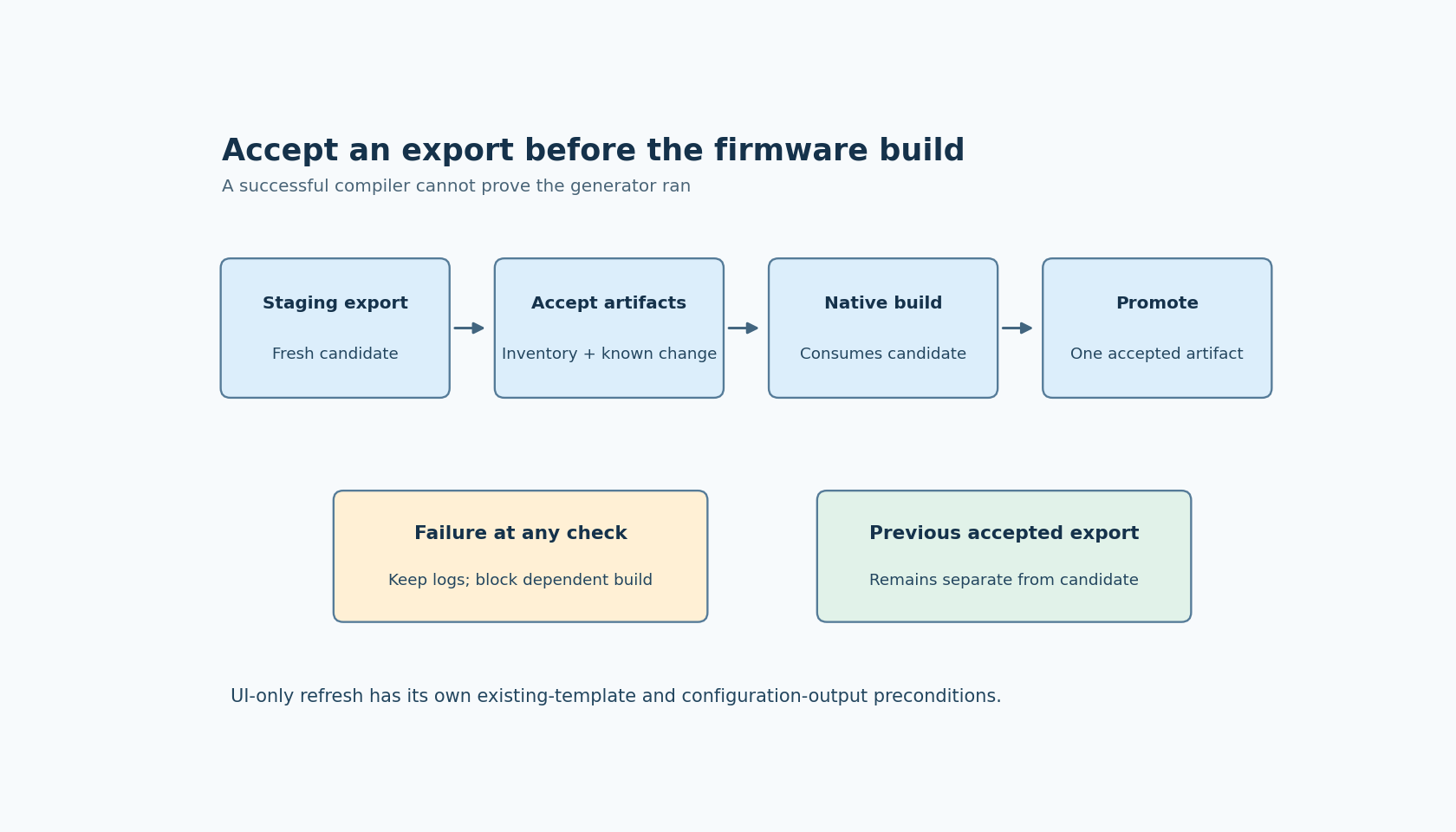
Use a dedicated staging tree for each export attempt. Do not aim the first automated experiment at the product's working source directory. Preserve the previously accepted output until the new candidate has passed validation.
For a full export, start with the required destination conditions for that mode and capture the entire process log. For UI-only refresh, prepare a known template export in staging first: the documentation's refresh example requires an existing export folder. Avoid satisfying that requirement by silently reusing an arbitrary old production tree.
Record the project revision, application version, selected board package, intended export mode and resolved destinations. Store that information with the candidate artifact. These records help explain a failure; they do not by themselves prove reproducibility.
Wait for the export process to finish. A timer that sleeps for a guessed number of seconds is not a completion signal. If the runner imposes a timeout, distinguish “process timed out” from “export completed with a valid candidate.” Preserve logs from either outcome and prevent dependent compilation when acceptance has failed.
Define acceptance from the product's required outputs
Build an expected output inventory from a small known project using the same export options. Include the main UI sources, screen sources, required fonts and images, and configuration outputs that this mode is responsible for producing. Do not assume that a nonempty directory means a complete export.
Check that required files exist in the candidate location, are nonempty where appropriate, and are represented in the native build inputs. A project with directory-organized output needs a different path inventory from a flat export. Keep the inventory connected to the project's actual configuration rather than hard-coding one tutorial's folder structure forever.
Then introduce a harmless, recognizable project change in a test branch, such as changing a diagnostic label. Verify that the exported artifact contains that new value. Compile the staging candidate and confirm that the native build does not reach back to the previous accepted UI directory.
A changed timestamp is weak evidence on its own. A content difference tied to the intended project change is more informative. If an unchanged project produces incidental metadata differences, classify those differences rather than claiming all generated bytes are deterministic.
Prove that failure cannot fall through
Exercise the wrapper with an invalid project path and an invalid output destination in a disposable test. Confirm that the build is blocked even if a valid older export exists elsewhere. This checks your integration's control flow without depending on a particular undocumented process return value.
Also test a project containing a deliberately missing required asset, if the editor allows you to save that state. Observe the application's diagnostics and candidate outputs. Do not invent an expected exit code or assume that a warning has the same severity in every release; encode the acceptance condition your product actually needs.
The official changelog lists command-line export fixes in 1.6.1. That history makes the exporter version part of the test record. It does not justify assuming that an older automation workaround is still necessary, or that an upgrade has eliminated every possible failure.
Promote only the candidate you validated
After export checks and the native build pass, hand the accepted candidate to the next build stage through one explicit path or artifact reference. Avoid copying a subset of new files over an old output tree, where obsolete screens or assets can remain available accidentally.
Keep the candidate inventory and logs with the build result. The useful guarantee is bounded: this export attempt produced the expected files from the recorded input, and this build consumed them. It is stronger than “the command returned” and more honest than claiming universal reproducibility from one successful run.