SquareLine Studio Frame Animations: Validate the Numbered Image Set Before Playback
An image animation can survive a build while showing the wrong sequence. A designer renamed one frame, another frame was replaced with a placeholder, and the output directory still contains yesterday's image data. The compiler sees valid objects; the product shows a discontinuity.
SquareLine Studio recognizes image sequences from names. Treat those names and the intended frame membership as part of the animation's input contract. Validate the set before investigating motion timing or display throughput.
Establish the sequence the design actually intends
The official Animation Panel documentation describes image-frame animation using a common filename portion followed by a numeric index. SquareLine recognizes the sequence, and the animation's start and end values select its range.
That description does not establish every naming edge case. It does not provide a general contract for gaps, mixed zero padding, duplicate numeric suffixes or every possible extension. Do not infer a sorting rule from a file browser or from a sequence that happens to contain fewer than ten frames.
Write a short frame manifest maintained with the artwork. For each intended frame, record its source filename, expected position in the sequence and a recognizable visual feature. Include the intended first and last frames and whether the transition between the last and first is meant to be continuous.
For a loading indicator, the distinguishing feature might be the position of a bright segment. For an instructional animation, it could be a numbered step. This makes a missing or repeated frame observable without needing to guess from a fast playback.
Use diagnostic artwork to test naming assumptions
Create a small test copy of the animation with a large visible index drawn into every frame. Keep its dimensions and naming pattern representative of the production assets. Slow playback enough to identify each frame unambiguously.
Test the baseline before changing anything. Record the recognized range and the displayed order. Then introduce one naming change at a time in a disposable project copy: rename a suffix, remove one frame, or add a frame beyond the current end value. Reopen the project where appropriate and inspect the animation again.
The purpose is to discover and document the behavior of the installed exporter, not to prescribe an undocumented response. A missing frame might produce a diagnostic, a changed selection or a different sequence behavior. Record what the selected version actually does and decide whether that result should block the team's asset update.
Pay particular attention to the transition across a digit boundary, such as frame 9 to frame 10. If the design uses zero padding, keep that convention consistent. Consistency simplifies review even when the software accepts several alternatives.
Separate imported artwork from emitted image data
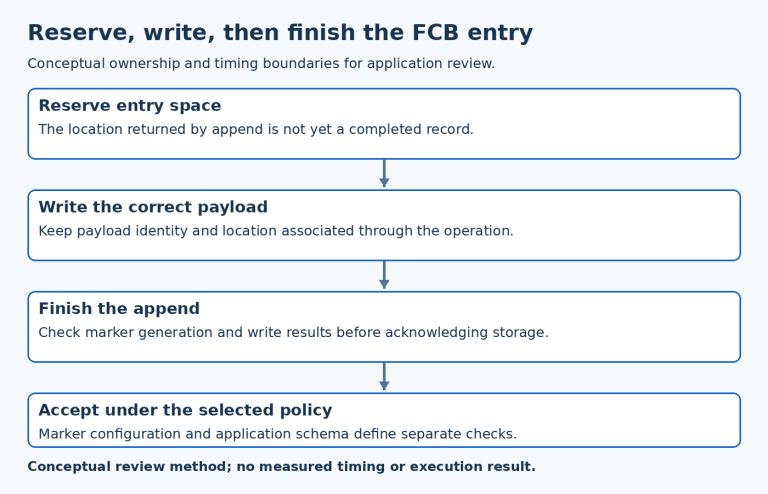
An asset visible in the editor is not sufficient evidence that the native application uses its latest version. Export into a fresh destination and inspect the generated animation references alongside the emitted image set.
The Project settings reference documents two settings relevant to this inspection. Force export all images can emit unused images, while Export temporary image can provide data for undefined image sources. Record both settings in the test result.
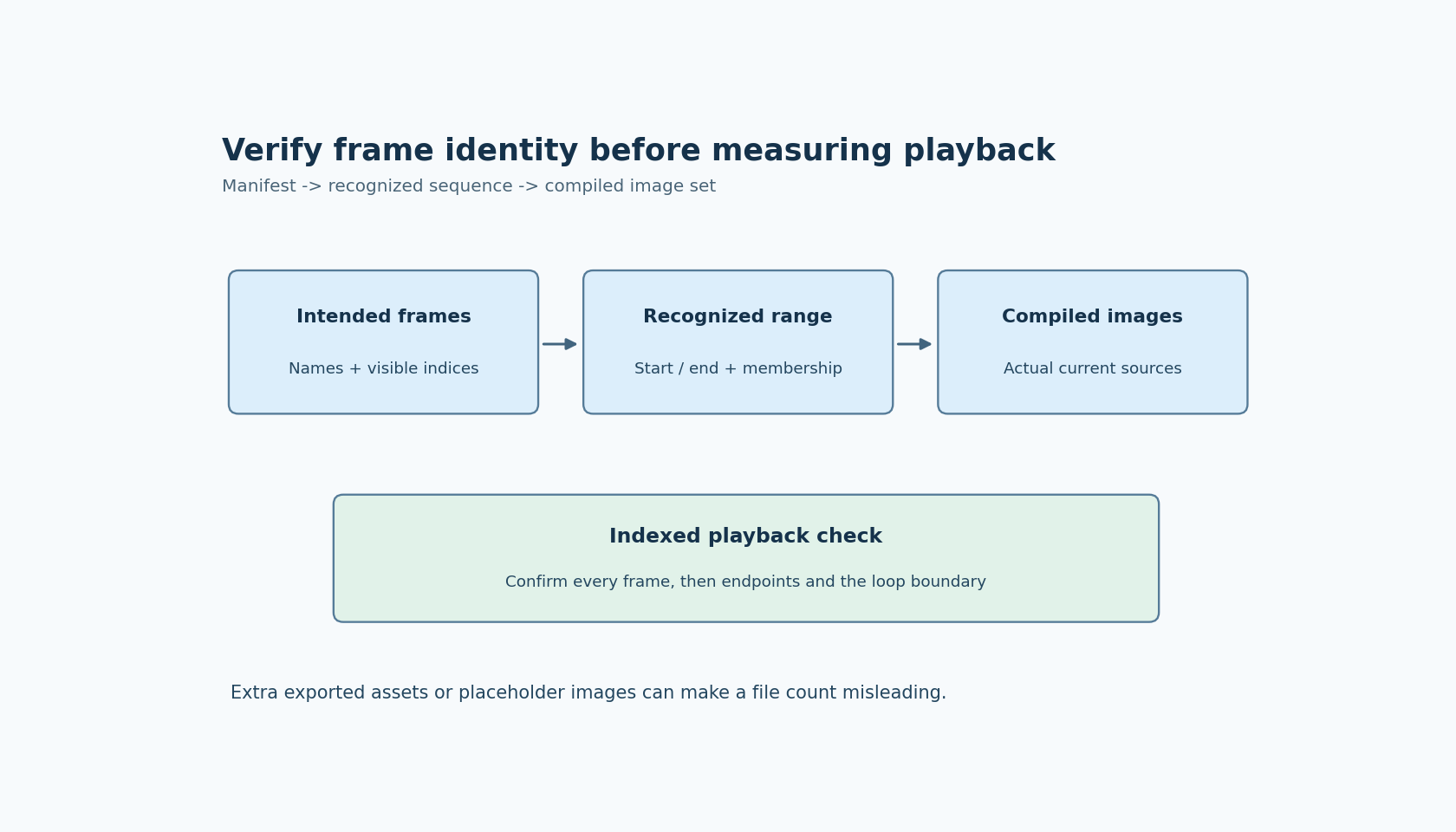
Their presence changes how to interpret an inventory. An extra emitted image may be intentional under the first setting. A successfully linked placeholder may conceal an unresolved source under the second. A simple count of C files therefore cannot establish that the intended sequence is complete.
Compare three lists: the artwork manifest, the sequence referenced by the generated animation, and the image sources actually compiled into the application. Explain every difference. This also prevents an old generated file from satisfying a reference that the current export should have exposed as missing.
Test the selected range before testing the loop
First play only the intended start-to-end range once at a slow speed. Confirm both endpoints and each intermediate diagnostic index. If that fails, changing duration or playback mode only makes the underlying identity problem harder to see.
Next test the production loop policy. Watch the boundary between the last and first frames. A visually duplicated endpoint can look like a pause even when the timing system behaves correctly. Conversely, a missing intermediate pose can look like a timing spike despite uniform frame selection.
Replace diagnostic artwork with the production images only after the identity test passes. Confirm that the replacement retained the same filenames and dimensions, then repeat the endpoint and loop checks. If the artwork itself intentionally changes dimensions, include that change in the review instead of assuming layout remains unaffected.
This article follows official documentation labeled SquareLine Studio 1.6.2. The experiments are proposed checks, not reported measurements. They do not establish animation frame rate, decoder cost or memory use on a target device.
Make the next asset update reviewable
For each accepted animation update, preserve the intended frame manifest, selected range, export settings and a record of the diagnostic playback. A short observation of the indexed frames is more useful for this problem than a screenshot of the first frame alone.
If only artwork changes, compare content identities as well as filenames. Identical names can hide a reversed sequence or an accidentally duplicated image. If names change, review the generated references and selected range as a semantic change, even when the total number of files stays constant.
Release the update only after the native build consumes the reviewed image set. Performance testing can then answer its own question: whether that correct sequence plays acceptably on the target. Establishing which frames are being displayed gives that later test a reliable starting point.