EEZ Studio Dynamic Values: Trace ui_tick Before Blaming the LVGL Display Driver
An EEZ Studio screen draws correctly, touch input works, but a label bound to a changing native value remains frozen. Rewriting the display driver is an expensive first response. A working static screen says little about whether the application is servicing EEZ's generated dynamic-update path.
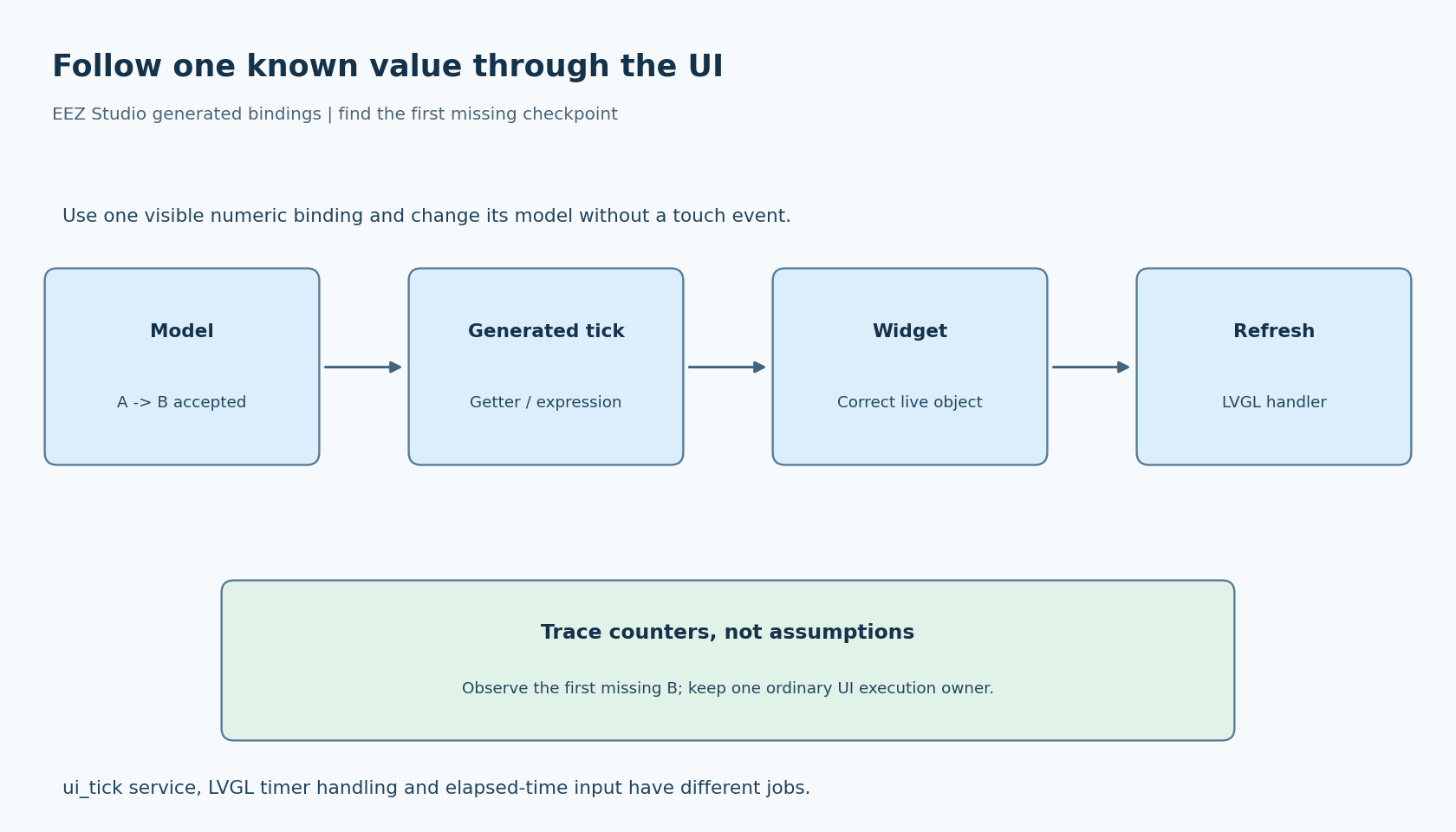
Trace the value through four checkpoints: the application model, the generated binding, the widget property and the rendered display. This separates a missing ui_tick() call from a stale getter or a later LVGL refresh problem.
The examples below describe the integration pattern in EEZ's official native examples. Their generated output includes older LVGL names, so inspect your own generated ui.c and screens.c rather than copying their startup code into a different LVGL release.
Three recurring activities, three different jobs
The EEZ integration FAQ places ui_init() after LVGL initialization and calls ui_tick() after the LVGL handler in the application loop. That identifies a service obligation beyond merely creating the screens once.
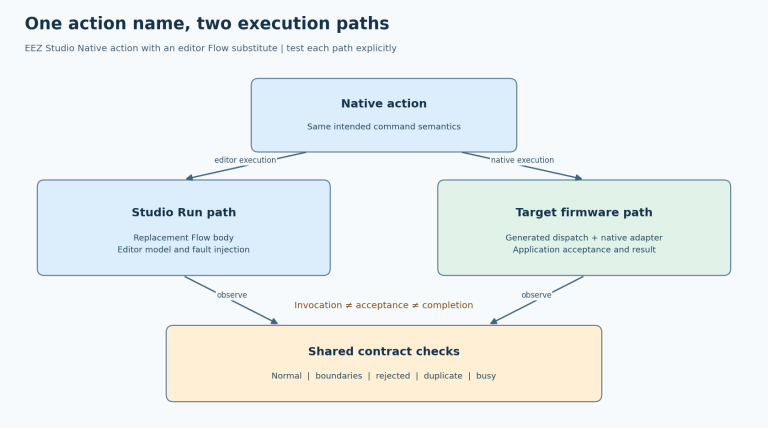
In the official no-Flow example, the non-Flow ui_tick() calls the generated tick function for the current screen. In the with-Flow example, the Flow branch also services the Flow engine and example variable updates. Those are observable source-level differences; do not assume every generated project contains the same body.
LVGL's own handler has another role. Its timer documentation explains that timers service display refresh and input processing. An elapsed-time source is a further integration concern. The name ui_tick does not mean it replaces the LVGL time source or that calling it at startup is sufficient.
Build a one-value tracing experiment
Choose one ordinary numeric variable and one visible widget on the active screen. Avoid a first test involving network traffic, screen transitions, animations or a complex expression. The objective is to remove unrelated dependencies.
Arrange for the application model to change from a known value A to a distinct value B without any touch event. Keep both values inside the widget's valid range. Record a sequence number alongside the model update so logs distinguish a new sample from repeated reads of the old one.
Add lightweight observations at these points:
- Immediately after the model accepts B.
- When the native getter or relevant Flow expression observes B.
- When the generated update path assigns the corresponding widget property.
- When the display refresh path processes the resulting change.
Use counters or brief trace records appropriate to the platform. Printing a long message on every UI pass can create the timing problem you are trying to diagnose. Remove or disable intrusive tracing when measuring responsiveness later.
Do not assume a getter must run exactly once per model change. That is an implementation detail to inspect in the generated code, not a suitable universal acceptance condition. The important observation is whether B eventually reaches the intended visible widget.
Interpret the first missing checkpoint
If the model never accepts B, stay in the application layer. A successful sensor read or received packet is not the same as updating the particular model field used by the UI.
If the model contains B but the getter returns A, inspect the binding and adapter. Two similarly named variables, unit conversions or a cached copy can explain the discrepancy. Confirm that the widget references the variable you are tracing rather than a literal or another expression.
If the getter would return B but the generated update function is not reached, inspect the ui_tick() call site. Verify it is actually executed in the active loop or task, and that a long-running operation is not preventing the next pass. Check which screen the generated dispatcher considers current. A hidden screen's update policy need not match that of the visible screen.
If the generated code assigns B but the display stays unchanged, move downstream. Check that the referenced object is still the visible instance, then investigate LVGL timer service and rendering. This is the point where a display-side diagnosis becomes justified by evidence.
Fix scheduling without creating two UI owners
A tempting workaround is to add another timer or task that calls ui_tick() more often. That can mask the original omission while introducing concurrent access to generated objects and Flow state.
Keep the generated UI service within the execution context that owns ordinary LVGL work, or use the project's deliberate locking architecture consistently. LVGL's threading guidance requires serialization of ordinary LVGL calls and includes lv_timer_handler() in that requirement. A second caller is not automatically safe because both functions have “tick” or “timer” in their names.
Also inspect the work performed by native getters. A getter that waits for a fresh bus transaction can delay the whole UI pass. Prefer a clearly owned model snapshot when that fits the application, and show freshness or error state separately instead of blocking until data arrives.
Verify the diagnosis, then widen the test
After the smallest case passes, repeat the change while the UI is otherwise idle, while input is active, and immediately after navigating away and back. Verify that the new value appears without requiring an accidental redraw caused by touching another control.
Record the relevant loop or task service interval if latency matters, but do not substitute a desktop observation for a target timing measurement. A functional pass establishes the update path; a response-time requirement needs its own measured budget and workload.
The tracing experiment described here has not been run on a target. It gives a bounded debugging method: locate the first stage that fails to carry a known value, repair that stage, and avoid changing lower-level rendering code until the evidence reaches it.