SquareLine Studio SVG Export: Verify the Target Renderer Before Accepting the Preview
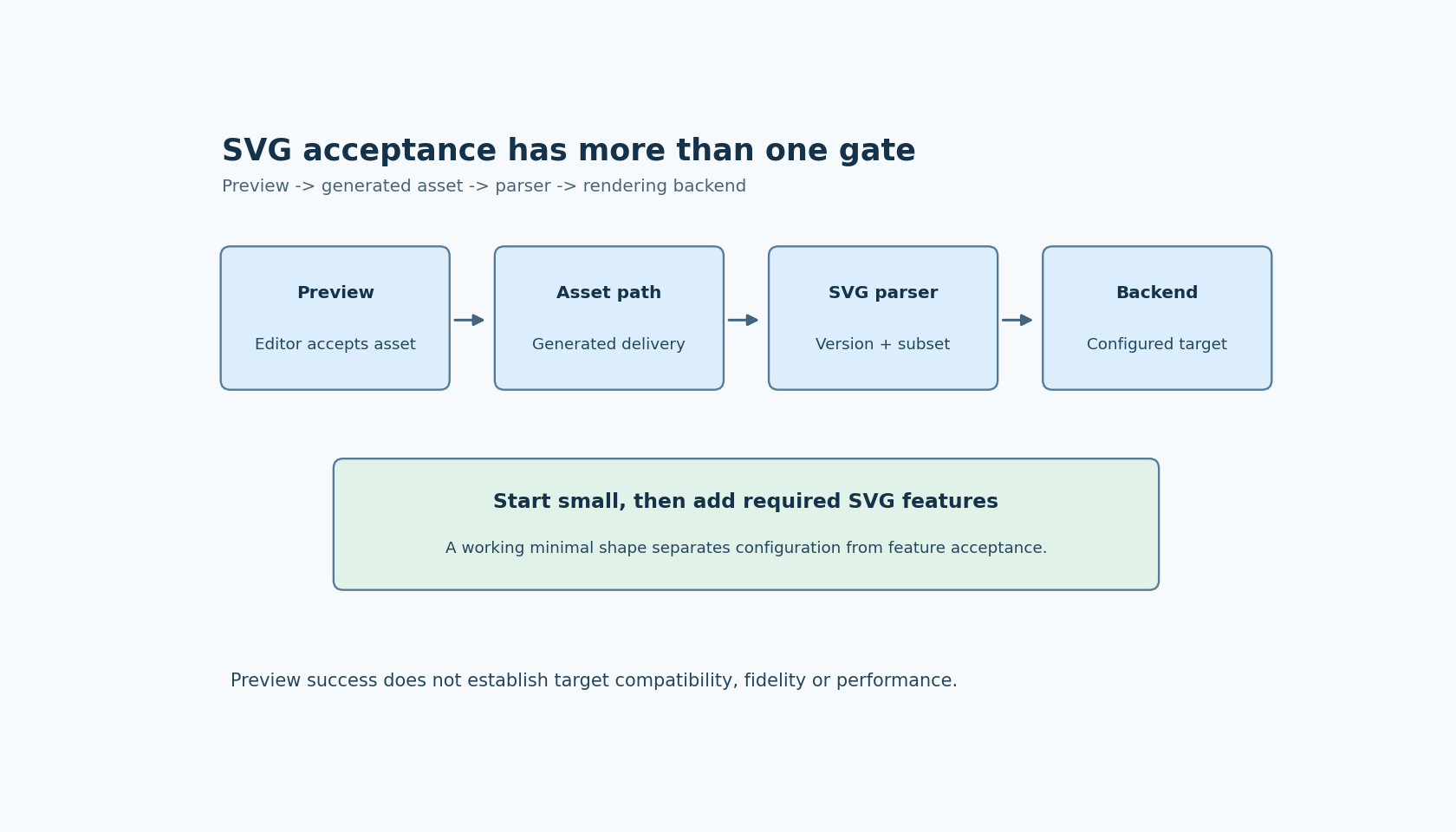
An SVG that looks correct inside SquareLine Studio has passed one useful check: the editor can preview that asset. It has not yet established that a particular firmware build can parse and render the same document. SVG introduces a parser, a supported feature subset and a vector-rendering integration that a bitmap-only project may never have exercised.
The SquareLine Image widget documentation limits its SVG support to LVGL 9.5 or later and states that ThorVG must be included and enabled for the described integration. SVG support appears in the SquareLine 1.6.2 release notes. These are versioned requirements, not a reason to send an SVG to an older generated project and expect the source extension alone to enable it.
Read the two documentation scopes carefully
The LVGL 9.5 SVG decoder documentation describes SVG Tiny 1.2, the LV_USE_SVG setting and examples conditioned on vector-graphics support. This is a general LVGL description. SquareLine's integration instructions are more specific about the backend it expects.
Do not collapse those statements into “every LVGL SVG implementation always requires ThorVG.” Equally, do not omit SquareLine's stated integration requirement merely because the general LVGL page has a shorter configuration example. Start with the actual generated project and determine which parser and rendering path it is intended to use.
Record the selected LVGL version, the SVG-related configuration and the vector backend included in the target build. If a board package supplies those choices, inspect that package rather than assuming the editor changed an already existing firmware configuration.
Establish a minimal target case before testing the artwork
Create a deliberately small SVG using simple geometry within the documented subset. It should have a recognizable solid shape and known dimensions. First confirm that this asset reaches the target through the path produced by SquareLine and is drawn by the selected native integration.
A blank result at this stage is easier to diagnose than a blank result from a complex illustration. Check whether the asset was supplied, whether the intended parser is enabled and whether the selected rendering backend is present. These questions are distinct from whether an advanced SVG feature is supported.
Keep the minimal example in the test project after it works. It becomes a control. If a later production icon fails while the control still draws, the investigation can move toward the icon's content or a specific operation instead of restarting with general configuration.
This is a proposed diagnostic sequence. No SquareLine export, firmware build or device rendering was performed for this article.
Grow the SVG by feature, not by file size
List the features actually used by the production asset. Then add those features to the working control in small steps, checking the target after each step. A small SVG can use a difficult feature, while a much larger file can contain only straightforward paths. File size is therefore a poor substitute for a feature inventory.
Check the geometry, fills, clipping behavior and transparency that the design depends on, without assuming browser-complete SVG compatibility. Where the documented subset or selected backend does not establish support, treat the feature as something to verify rather than silently approving it because a desktop browser renders it.
Compare at the intended display size. A vector asset may look attractive when enlarged in the editor yet expose a different edge or alignment issue at the small dimensions used by the product. If the UI supports multiple sizes, include those sizes explicitly instead of assuming one successful render covers them all.
Keep parse success separate from visual acceptance
A parser accepting a document is not equivalent to the icon matching the design. Conversely, an incorrect visual result does not automatically mean the whole SVG path is unavailable. Preserve the smallest asset that demonstrates the difference and identify the specific visual feature involved.
Use a bitmap rendering of the approved artwork as a visual reference if that helps the review, but do not claim it proves pixel-identical rendering across backends. The purpose is to make missing geometry, wrong colors or unexpected transparency visible. The acceptable tolerance belongs to the product's visual requirements.
Performance needs a separate decision. Vector input is not automatically smaller in total firmware or faster to draw. Include the renderer's footprint and the actual operations required by the UI when evaluating those tradeoffs. This source-based investigation supplies no target timing or memory figures.
Define a useful fallback boundary
If a required feature is not accepted by the selected integration, choose deliberately between simplifying the SVG, adjusting the supported target path or shipping a raster asset at the required sizes. The first decision should be about the product's visual and deployment requirements, not loyalty to a file extension.
A deployment-ready SVG record therefore contains four pieces: a version-compatible SquareLine project, an identified generated asset path, an enabled target parser/backend and an accepted feature set. The editor preview contributes to that record. It cannot replace the other three checks.